

Activating your plugin with iLok License Manager

A comprehensive PDF guide regarding activating Expressive E software protected by PACE iLok is available here:
👉 Expressive E iLok License Activation Guide
☝️This guide is not relevant for our Expressive Suites. These follow the activation logic of the respective third-party plugin developer.
To find the installation guides for Expressive Suites, click the ‘help’ button of the respective product tile in the my products section of your account.
There are two methods of redeeming and activating your license:
The inbuilt activation popup is the most convenient way to redeem your code and activate your license. It is explained here.
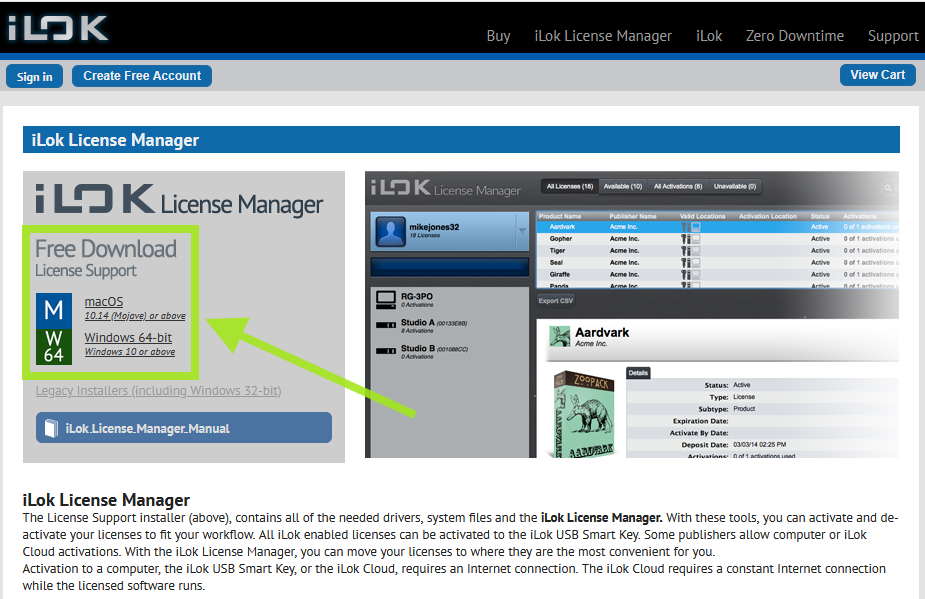
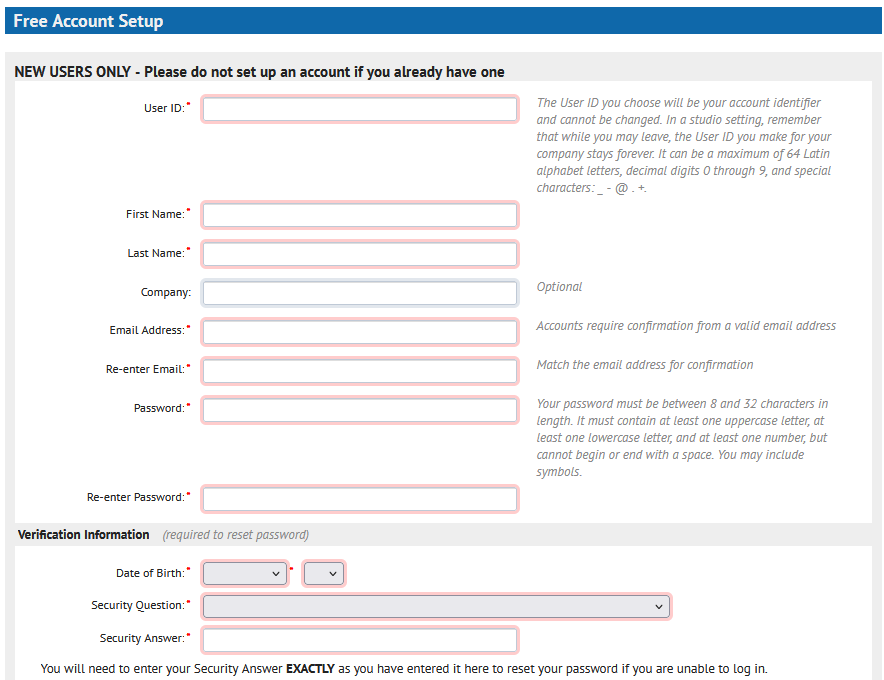
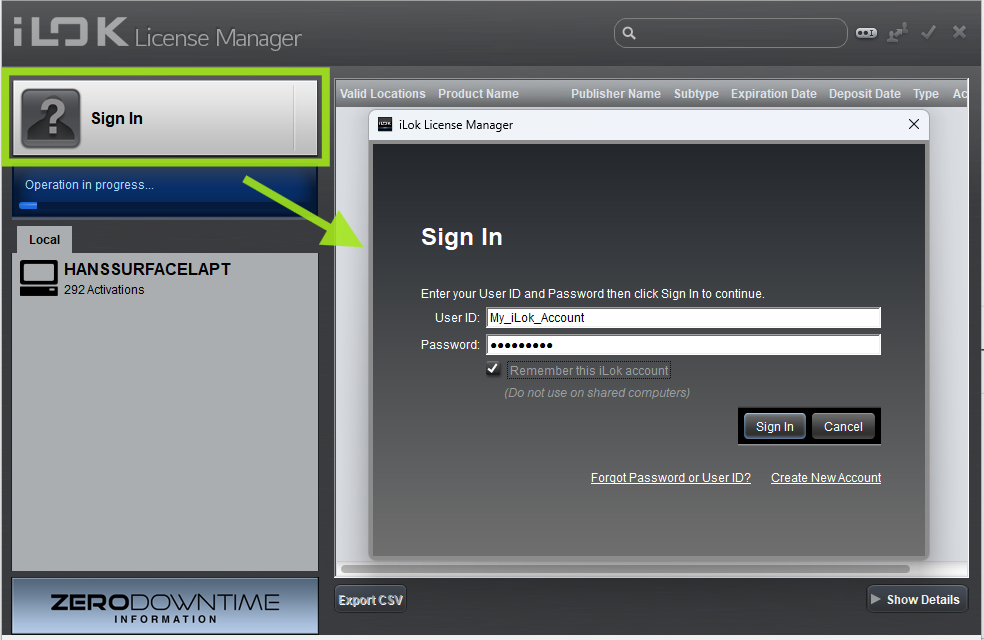
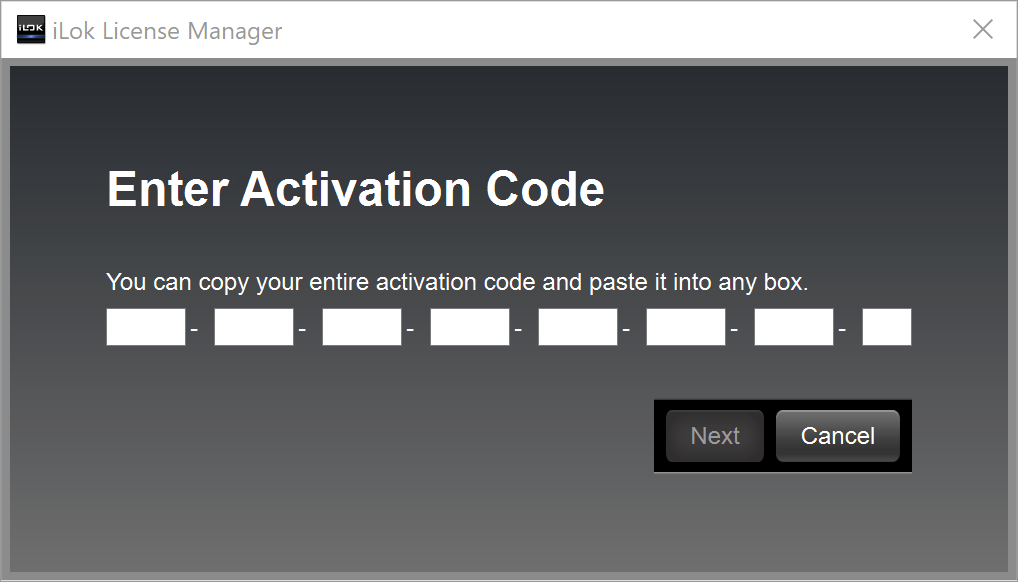
The dedicated iLok License Manager application is a handy alternative for redeeming your code and/or activating your license, especially when you encounter issues with the activation window not appearing in your DAW. It is explained below.
activating your instrument with ilok license manager
|
|
|
|
|
|
|
|
|
|
|
|
|
|
|
|
|
|
|
|
|

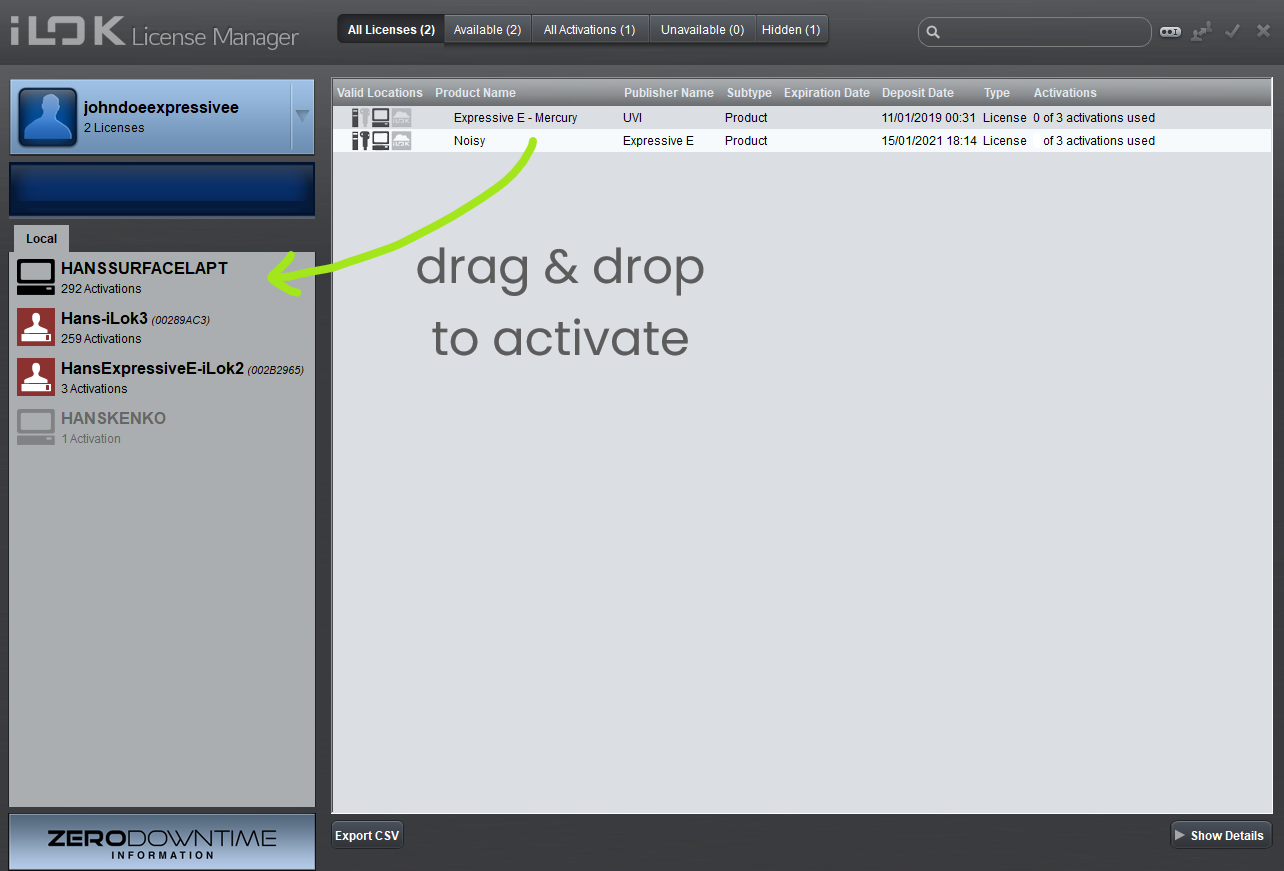
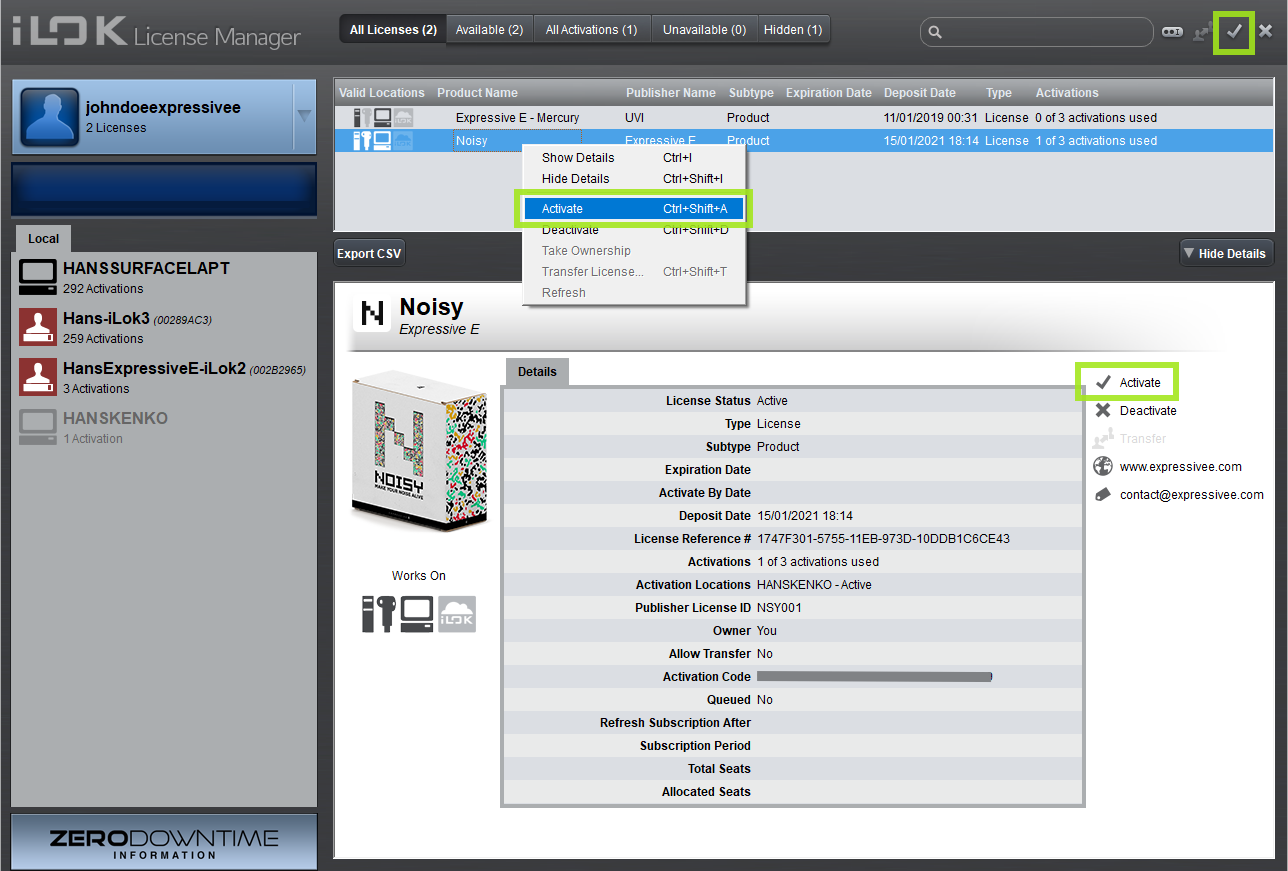
The license has now been activated on the location you selected, and you can start using the plugin in your DAW.
If the plugin still isn’t available in your DAW, please refer to our step-by-step troubleshooting guide: My plugin does not show up in my DAW

