


1) daw control script installation (only for Bitwig Studio 5)
🎞️ Find a video regarding Osmose CE DAW Control for Bitwig Studio here.
The Osmose CE DAW Control script is included natively in Bitwig Studio 6.0.6 and later. No separate installation is required.
If you are using Bitwig Studio 5.2.3 or later and cannot upgrade to the latest version, use the Bitwig script installer available from your Expressive E user account.
To download it, log in to your Expressive E account, go to My Products, find your Osmose CE, and download the DAW scripts for your operating system. Once downloaded, unzip the files and run the Bitwig script installer. Make sure Bitwig Studio is closed before installing.
After installation, open Bitwig Studio and verify that the settings below are correct.
2) configuring the MIDI ports
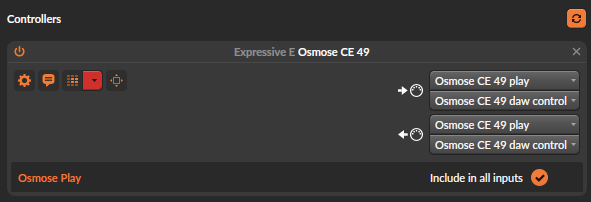
If not mounted automatically, in Settings -> Controllers, click ‘add controller‘, vendor Expressive E, and select your CE model. Then select USB MIDI Port 1 of Osmose CE for the first line for both input and output, and USB MIDI Port 3 for the second line.
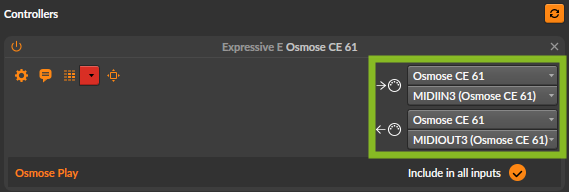
In macOS, port 1 is labeled ‘play‘ and port 3 ‘daw control‘:
ℹ If ‘takeover mode’ in Bitwig is configured to ‘immediate’, go to Settings > Controllers and choose ‘catch’.
3) enable mpe for ctrl-e
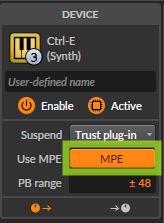
For Ctrl-e to work correctly in Bitwig Studio, Use MPE must always be enabled for the plugin. This setting is required for the proper MPE playing experience and for Osmose CE to access the full Ctrl-e browsing controls directly from the keyboard.
To make sure this setting is recalled automatically for future Ctrl-e instances:
- Select the Ctrl-e plugin device in Bitwig Studio.
- Make sure Use MPE is enabled in the device settings.
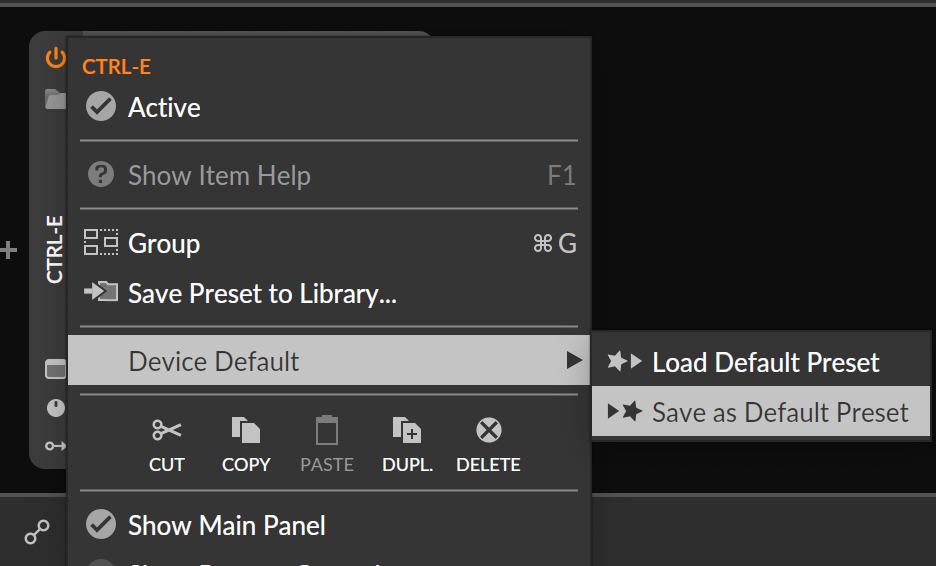
- Right-click the Ctrl-e device header, where the plugin name appears.
- Choose Device Default > Save as Default Preset
.
Bitwig Studio will then recall this configuration automatically each time you load Ctrl-e.

