🎞️ Find a video regarding Osmose CE DAW Control for Logic Pro here.
1) daw control script installation
To install the DAW Control script for Logic Pro, log in to your Expressive E user account and click on ‘my products‘. If you haven’t registered your Osmose CE yet, do this step first. Find your Osmose CE in the ‘my products‘-page, click the download button. Choose the mac DAW scripts. Once the scripts are downloaded, unzip them, and install the Logic Pro script. Follow the on-screen instructions. Ensure Logic Pro is closed before installing. After completion, open up Logic Pro and verify the settings below are correct.
2) configure the MIDI ports
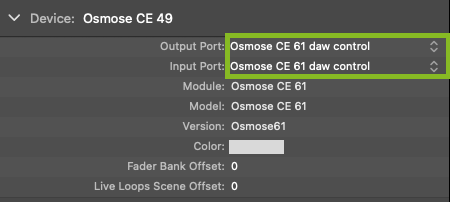
If not working automatically, go to Control Surfaces -> Setup and check the Output Port and Input Port of the Osmose CE device. They both need to be set to Port 3 'daw control'.
If Osmose CE still doesn’t offer DAW Control mode despite it being connected to your computer that is running Logic Pro 12+, please check our 🔗DAW script troubleshooting Logic Pro.
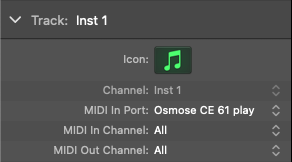
Select the ‘Osmose CE play‘ port as MIDI In Port for the instrument track that you want Osmose CE to control: