


ctrl-e integration overview
what is ctrl-e?
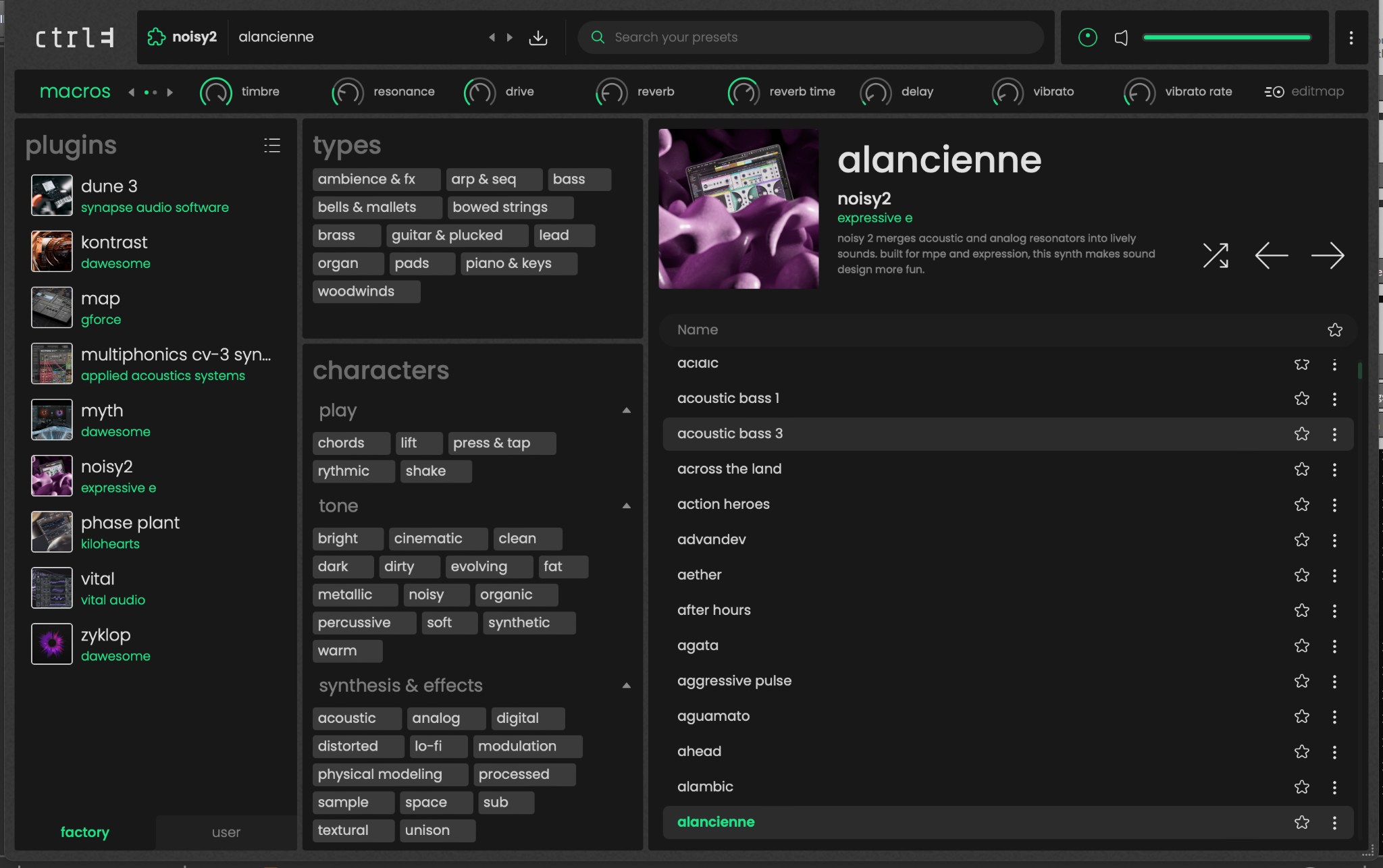
Osmose CE comes with Ctrl-e, Expressive E’s software platform for expressive sounds. Ctrl-e gives you access to a wide library of more than 900 MPE-ready presets, carefully tailored for the Osmose keybed.
To provide this sound library, Ctrl-e includes two full instruments: the powerful and versatile Vital, and the innovative Zyklop by Dawesome. Make sure Vital and Zyklop are properly installed to access the full Ctrl-e sound library.
Ctrl-e also integrates sound engines from renowned synthesizers such as Phase Plant by Kilohearts, Multiphonics by Applied Acoustics Systems, Kontrast and Myth by Dawesome, MAP by GForce, and Noisy 2 by Expressive E.
mpe setup requirement
To make Ctrl-e navigation and playing work as expected, MPE must be properly enabled for your DAW as well as on the track that Ctrl-e is loaded upon. See section “setting up your daw for daw control”.
automatic ctrl-e configuration
When DAW Control mode is active and you select a DAW track running Ctrl-e, Osmose CE automatically switches to Ctrl-e mode. This creates a plug-and-play MPE experience by automatically configuring the required internal MPE settings, loading the dedicated Ctrl-e sensitivity setup, and giving you direct access to advanced Ctrl-e browser navigation from Osmose CE’s screen.
menus in ctrl-e mode
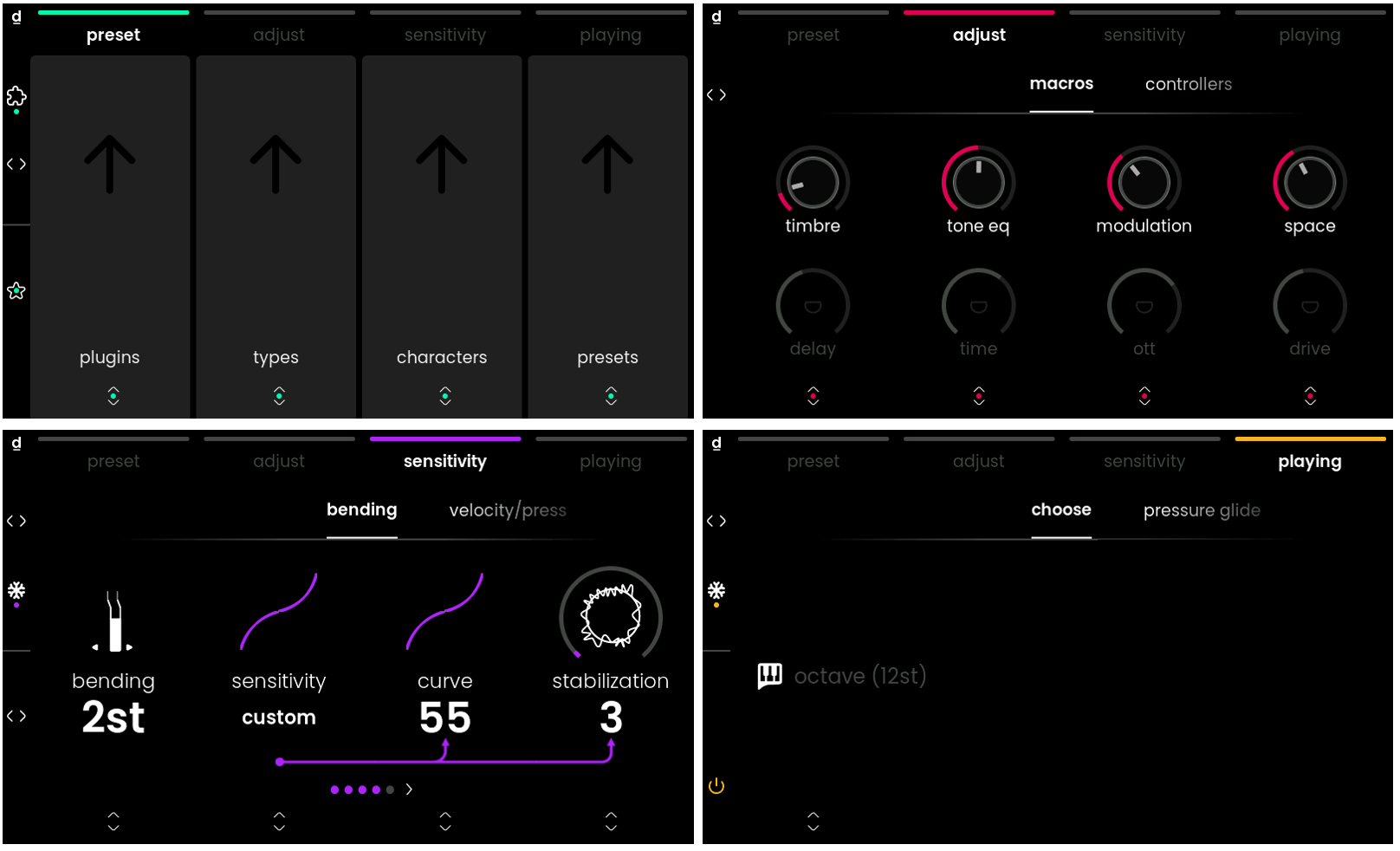
When Osmose CE automatically switches to Ctrl-e mode, the four main menus are adapted to the Ctrl-e workflow.
preset menu
The preset menu gives you advanced navigation through the Ctrl-e browser directly from Osmose CE. From there, you can explore plugins, types, characters, presets, and more.
adjust menu
The adjust menu gives access to two tabs: macros and controllers.
The macros tab lets you control macros directly from Osmose CE.
-> For more information, see the macro tab section.
The controllers tab lets you define which MIDI CCs are controlled by the modulation slider, pedal 1, and pedal 2.
-> For more information, see the controllers tab section.
sensitivity menu
The sensitivity menu includes the standard sensitivity settings, plus an additional Ctrl-e sensitivity tab.
-> For more information, see the sensitivity menu.
playing menu
The playing menu remains the same as in External MIDI mode.
-> For more information, see the playing menu section.

