


 11083
11083
This article shows the procedure needed to register, activate and install a sound expansion (e.g. Mercury or Helium) for Lié, Touché's companion app.
Step 1: Redeeming your license to your iLok account via the UVI server
- Find your new sound expansion in the 'My Products' section in your Expressive E account.

Click on the "authorize" button next to its serial number. If you bought from a reseller, you will first need to enter the code you received on our registration page.
-
Link the license to your existing iLok account by entering your iLok user ID and clicking "link my account". Your information will be sent to the UVI server, which adds the license to your iLok account.
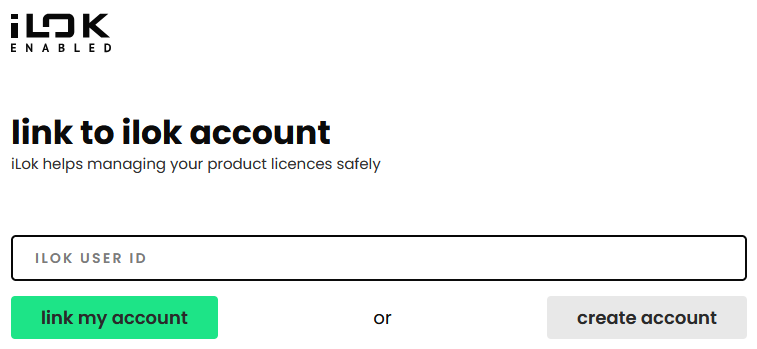
If you don't have an iLok account yet, create a new one using the "create account" button, which will take you to the PACE iLok website.

Step 2: Activating your license with iLok License Manager
Step 2.1. Installing iLok License Manager
If you are Windows, iLok License Manager will already be installed on your machine, since it is part of the Lié UVI Workstation installer. You can skip this step, then.
- Go to https://www.ilok.com/#!license-manager to download iLok License Manager.
- Install it on your computer.
Step 2.2: Activating your license on your machine with iLok License Manager
- Launch iLok License Manager, click on ‘’Sign In’’ and enter the ID and password you created before.

- Once connected, click on Expressive E - Mercury/Helium to select it and on ‘’Show Details’’ on the bottom right corner of iLok License Manager. Click on 'Activate' to activate your license. You can activate the license locally on your computer and/or on an iLok dongle if you have one. There are 3 activations possible at the same time.

Step 3: Downloading and extracting the installers of your expansion
You will find the download links to your soundbank under 'My Products' inside your Expressive E customer account. Download and extract the archive that suits your operating system.

Step 4a: Installing the content & presets on a Windows PC
- After extraction, you will be shown two folders. For working with Lié, open the one that is named 'Mercury_for_Touché' or 'Helium_for_Touche'.
- Run the '..._Soundbank.exe' to install the sound content needed for the expansion.
- Run the '..._LiePresetsForUVIWorkstation.exe' to install the Lié Presets that work with the free UVI Workstation.
Note: If you own UVI Falcon, instead of Step 3, you can run the installer from within the subfolder 'UVI Falcon owners only'. Those Falcon presets will sound exactly the same, but offer full editability instead of exposing only macro controls for sound editing.
Step 4b: Installing the content & presets on a Mac
- After extraction, you'll see two folders. For working with Lié, open the one that is named 'Mercury_for_Touché' or 'Helium_for_Touche'.
- Run the 'Mercury.pkg' or 'Helium.pkg' to install the sound data and the Lié presets needed for the expansion.
Note: If you own UVI Falcon, you can choose to install Falcon presets instead of the UVI Workstation presets when running the installer. The Falcon versions will sound exactly the same, but offer full editability instead of exposing only macro controls for sound editing.
Step 5: Launch Lié
You can now launch Lié. You will find the newly installed presets by searching for Mercury or Helium in the search bar of Lié's browser.

