

DAW script troubleshooting Apple Logic Pro

Sep 16, 2026
8

If your Osmose CE doesn't automatically offer DAW Control when connected to your computer that runs Logic Pro, although you are on Logic Pro 12 or higher and have installed the DAW script available in your Expressive E account, please manually activate Osmose CE <-> Logic Pro communication for DAW Control mode:
- Go to ‘Logic Pro > Control Surfaces > Setup…’
- The ‘Control Surface Setup’ window will open
- If you see your Osmose CE in the device list:
- Click on it and make sure the ‘Output port’ and ‘Input port’ fields are both set to the daw control port
- If you do not see your Osmose CE in the device list:
- Click on ‘New > Install …’ (do not use the Scan function !)
- Select Osmose CE in the device list and click on the ‘Add’ button
- Make sure the ‘Output port’ and ‘Input port’ fields are both set to daw control port
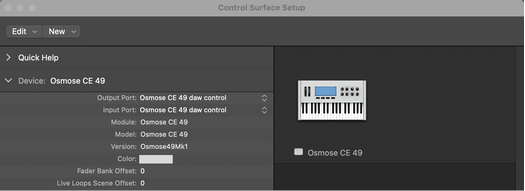
- Then, go to ‘Control Surfaces > Settings…’ and tick the Auto box for your Osmose CE device.
Sometimes, it can also help to reload the script. To do so, just click on ‘Logic Pro > Control Surfaces > Rebuild Defaults’

