


The Main Menu (mode selection screen) appears when Osmose CE starts up.
It is the main entry point for choosing how you want to use the instrument.
You can access Main Menu from anywhere by pressing and holding the MODE (m) button and pushing Encoder 1 below the screen.
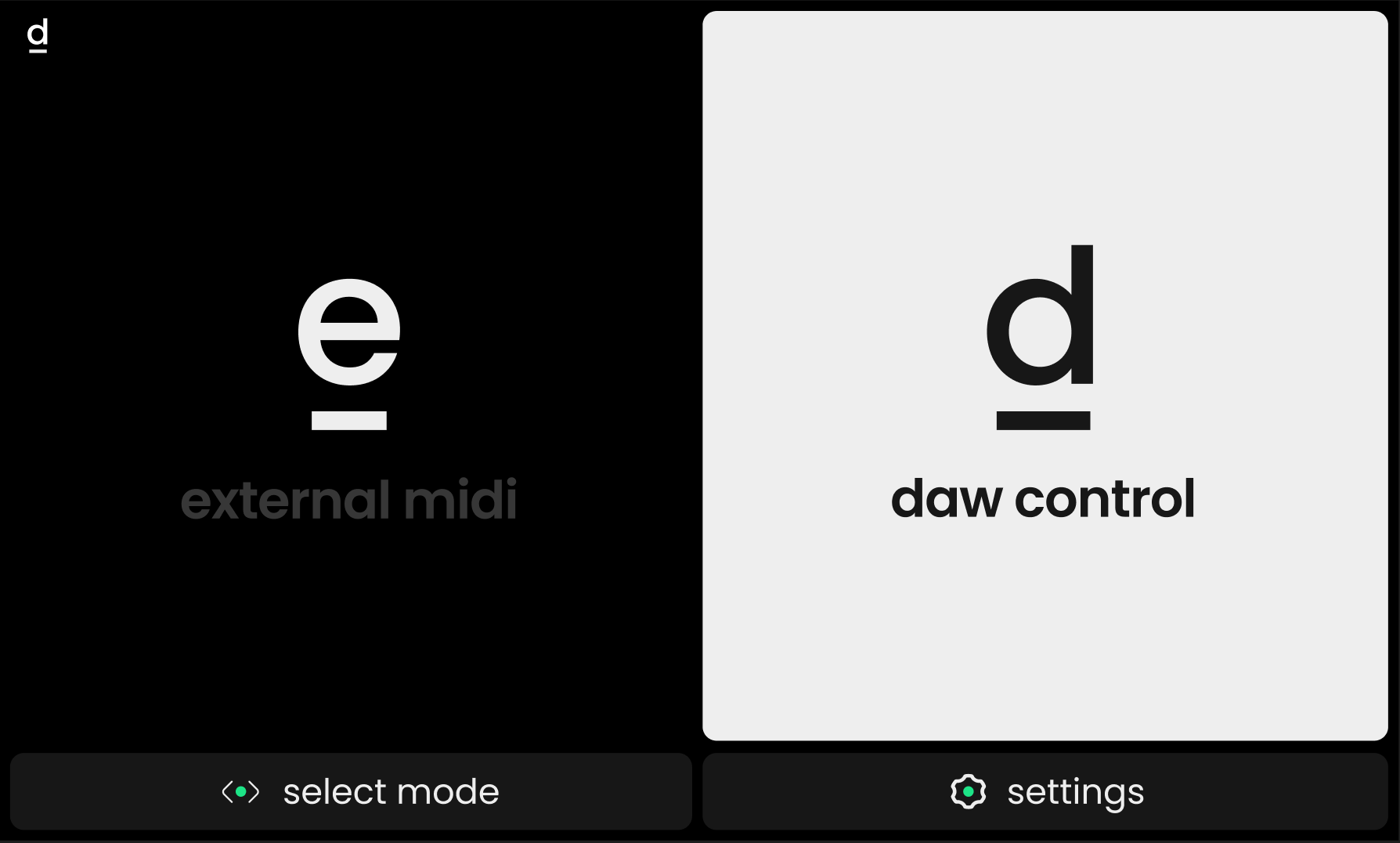
Depending on the current setup, one or two operating modes may be displayed:
External MIDI Mode
Use this mode to play and control hardware or software synthesizers via MIDI, using Osmose CE’s MIDI controller features. See external midi mode for more information.
DAW Control Mode
This mode appears only when Osmose CE is connected to a compatible DAW. It is designed to make Osmose CE feel naturally integrated into your DAW, with additional features such as transport control, navigation, macro controls, and deep integration with Ctrl-e, the included plugin for expressive MPE sounds.
See daw control mode for more information.
⚙️From the main menu screen, press Encoder 4 below the display to access the global settings, where you can adjust system-wide preferences such as global tuning, pedal calibration, firmware information, screen brightness, and more.

