


The Sensitivity menu lets you customize the keybed sensitivity for bending, velocity/press, and aftertouch. These parameters are always saved in the midi config presets you create. You will still need to manually save the midi config preset again if you make any changes you would like to keep.
Watch a video overview of the Sensitivity menu here : Osmose CE — Overview
bending tab
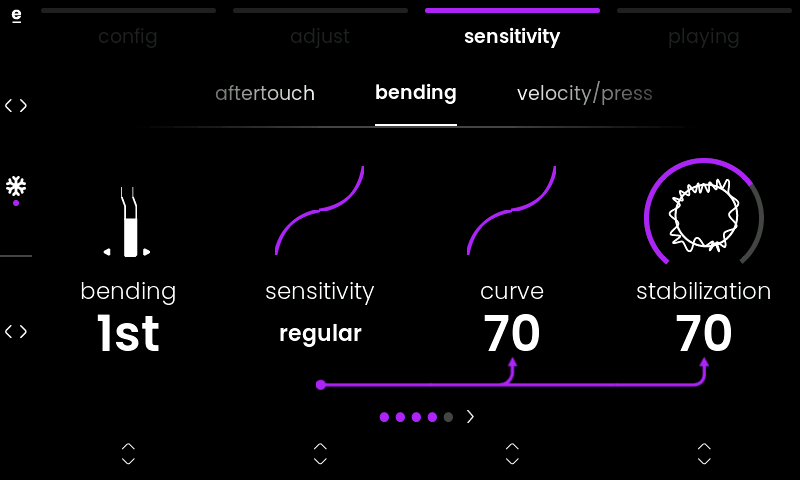
bending sets the range of bending when wiggling the key sideways.
ℹ When MPE is used, the bending value is shown as a number of semitones. It works together with the ‘mpe bend range’, see the workflow tab chapter for more information.
In Mono, Poly Aftertouch, and Multi-channel modes, the bending value is shown as a ratio of the pitch bend range set on the preset, plugin, or synth you are controlling.
For example, if the connected synth is set to a pitch bend range of ±2 semitones, a bending value of 1 lets Osmose CE use the full ±2 semitone range. A value of 1/2 uses half of that range, resulting in ±1 semitone.

☝️This allows you to use Osmose CE’s lateral key movements to control pitch bend on non-MPE instruments. In non-MPE setups, this pitch bend is global: it affects all currently played notes in the same way.
sensitivity adjusts how sensitive the per-key bending is.
curve finetune the curve of the bend.
stabilization stabilizes the bending during the first few milliseconds. Higher values will make the stabilization more rigid.
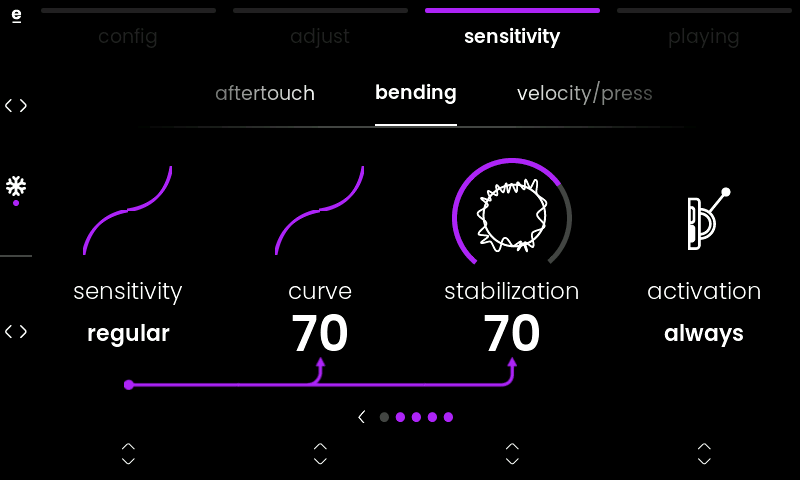
activation defines how bending will be applied when the keys are played. To see the activation parameter, use Encoder B to scroll right. Then turn Encoder 4 to select activation type. Depending on your choice, bending is applied:
- always: per-key bending on all notes
- never: per-key bending is disabled
- to oldest note: the ‘oldest‘ key that is still held defines the value
- to last note: the key you pressed last defines the value
- to lowest note: the key with the lowest note
- to highest note: the key with the highest note
velocity/press tab
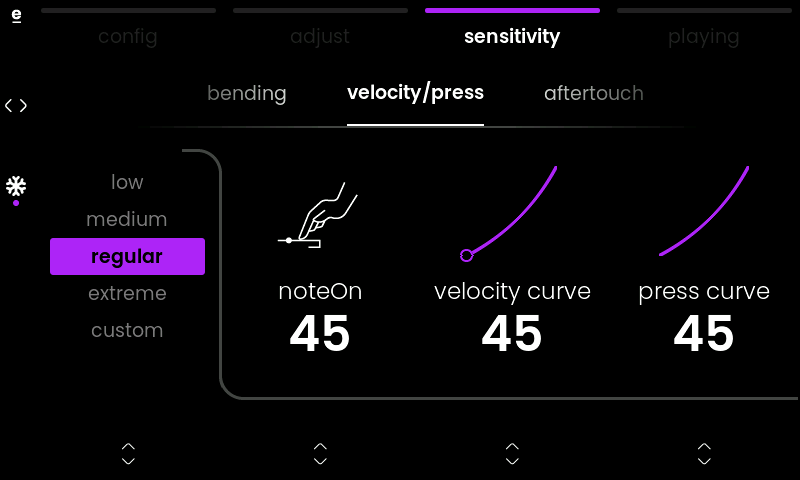
The ‘velocity/press’ tab governs the first vertical dimension of the keys. Encoder 1 lets you choose from a list of sub presets (low, medium, regular extreme, custom). These offer control over the following parameters at once:
noteOn defines at which point of the downward key travel a note is triggered, which is called the ‘note on’ threshold.
💡If you find yourself triggering notes unintentionally, we recommend increasing the ‘noteOn’ threshold value. This will bring you more and more towards a classic keybed feel, where notes are only triggered when you push a key right down to the bottom.
On the other hand, if you’re eager to experiment with triggering notes using only light keytaps, then a very low ‘noteOn’ threshold value will let you do exactly that.
velocity curve adjusts the response curve of the keybed velocity. Applies only to MIDI.
press curve adjusts the response curve of the pressure dimension. Applies only to MPE.
ℹ If you change any of these three parameters, the sub preset will switch to ‘custom’.
aftertouch tab
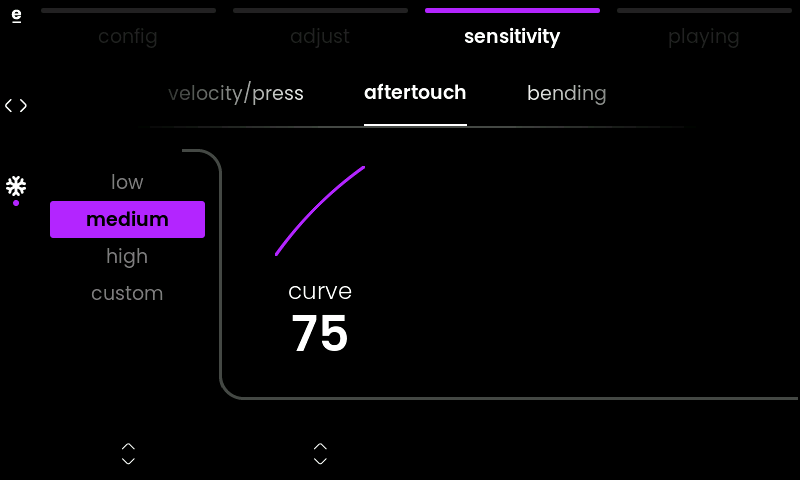
The aftertouch begins where the pressure axis motion is at the maximum. Aftertouch is the second part of the vertical key travel, following a clearly detectable pressure point.
The first parameter of this tab suggests quick presets for the aftertouch sensitivity curve, which can also be finely adjusted by turning Encoder 2.
💡The more notes you play at once, the harder it will become to push fully into the keys’ aftertouch without bending the notes’ pitch unintentionally. In this case you might prefer to have a sensitive aftertouch that doesn’t require lots of force to activate. On the other hand, if a preset triggers a special sound aspect upon entering the aftertouch, e.g. automatic ratcheting of a plucked sound, and you wish to have a clearer separation, it will help to dial down the aftertouch curve.
freezing sensitivity settings
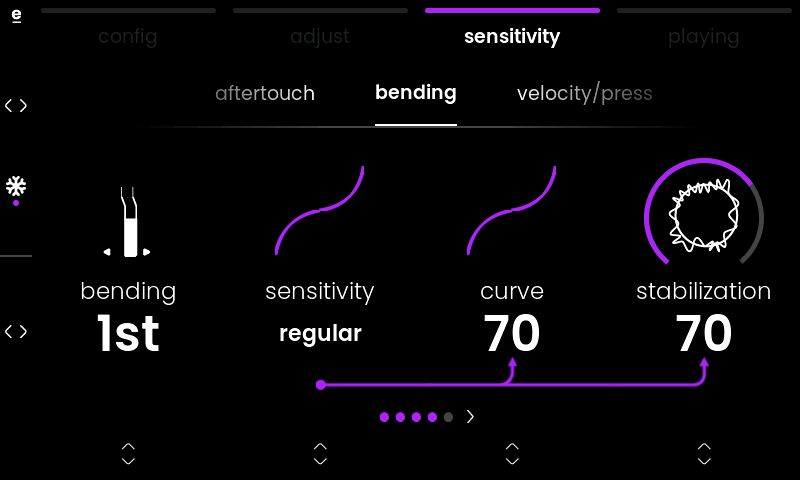
Push Knob A (❄️) to freeze your current sensitivity settings across all midi config presets you load in. The snowflake icon next to the encoder will turn purple when freeze is engaged. Push Knob A again to unfreeze.

