


Press the menu button 1 below the play symbol to open the preset menu for Ctrl-e.
Here you can use the encoders on your Osmose CE to navigate Ctrl-e:
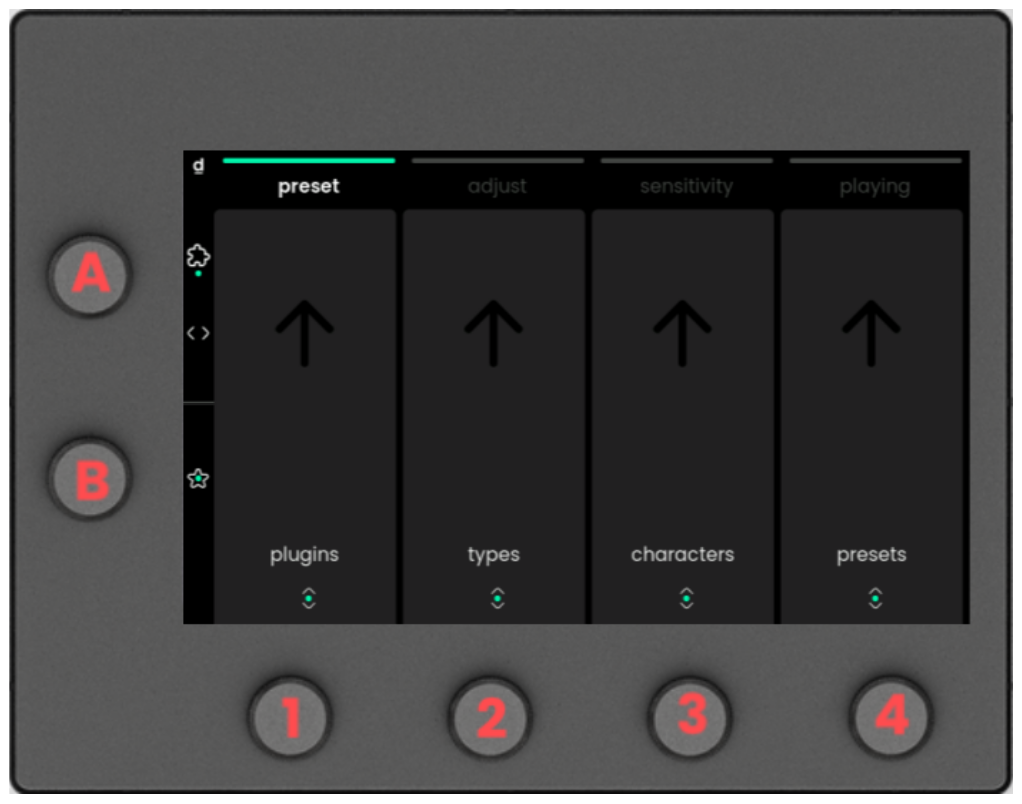
Knob A scrolls between Ctrl-e’s factory and user presets. Push the encoder to open and close Ctrl-e’s plugin window in your DAW.
Knob B press to add a preset to your favorites. Long press toggles favorite filtering, and shows only your favorites. Long press Encoder B again to show all presets.
VALUE encoder 1 scrolls between plugins inside Ctrl-e. Push to load your currently selected plugin. If you have sound banks installed for the plugin you’ve chosen, you can long press to show the available banks. Scroll between the banks with the encoder and select a bank, or long press again to return to the list of plugins. When your plugin list is sorted by ‘plugin + brand’ you can select the header displaying the brand name with the encoder, then long press to hide all plugins.
VALUE encoder 2 scrolls between types and subtypes of presets. Push to select. Choosing multiple types is possible. Long press this encoder to reset your current type / subtype selection.
VALUE encoder 3 scrolls between characters. Push to select. You may choose more than one character. To reset your current selection, long press this encoder.
VALUE encoder 4 scrolls between the presets. Push to confirm and load a preset.
ℹ As you scroll with encoders 1-4, a green square will appear around the section you`re controlling.
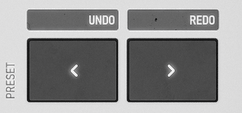
When Ctrl-e is active on your current track, you can also use the Previous Preset (<) and Next Preset (>) buttons to browse presets. Long press these buttons to activate ‘shuffle’.
If Ctrl-e is showing the ‘plugin view’, pushing menu button 1 (preset menu) closes the plugin view and returns you to the browser view.

