DAW script troubleshooting Steinberg Cubase

Sep 16, 2026
8

If your Osmose CE doesn't automatically offer DAW Control when connected to your computer that runs Steinberg Cubase, although you are on Cubase 15 or higher and have installed the DAW script available in your Expressive E account, please use the following procedure:
To manually activate Osmose <-> Cubase communication for DAW Control mode:
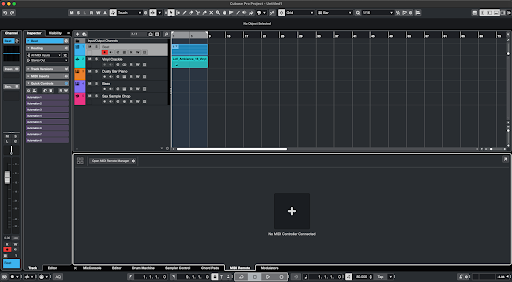
- Go to ‘MIDI Remote’ tab
- Click on ‘Add a MIDI controller surface’ button (big ‘+’ icon)
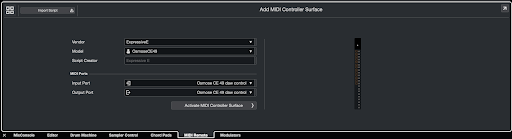
- Select the following values from the drop-down menus that appear:
- Vendor → ExpressiveE
- Model → OsmoseCE49 / OsmoseCE61
- MIDI Ports > Input port:
- macOS:
Osmose CE 49 → Osmose CE 49 daw control
Osmose CE 61 → Osmose CE 61 daw control - Windows:
Osmose CE 49 → MIDIIN3 (Osmose CE 49)
Osmose CE 61 → MIDIIN3 (Osmose CE 61)
- macOS:
- MIDI Ports > Output port:
- macOS:
Osmose CE 49 → Osmose CE 49 daw control
Osmose CE 61 → Osmose CE 61 daw control - Windows
Osmose CE 49 → MIDOUT3 (Osmose CE 49)
Osmose CE 61 → MIDOUT3 (Osmose CE 61)
- macOS:
- Click on ‘Activate MIDI controller surface’
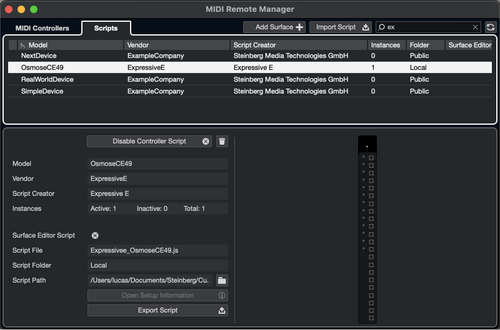
Sometimes, it can also help to reload the script. To do so:
- Go to ‘Studio > MIDI Remote Manager’
- The ‘MIDI Remote Manager’ window will open
- Select your Osmose CE in ‘MIDI Controllers’ tab or the integration script in ‘Scripts’ tab
- Click on the ‘Reload Scripts’ button (‘double arrow’ icon at the top-right corner of the window)